Product How it works Cross-Device FAQ Join waitlist

Guide

Set up freeself.

Set up your Tag and start your first focus session. Find help with schedules, places and connected devices below.

How freeself works

From setup to your next scan.

Step 1You decide
what takes a break.

Open freeself on your iPhone, sign in and allow Screen Time access. Then create a mode with the apps and websites you want to put aside for a while.

In Allow mode, you choose which apps stay available instead. Notifications are optional and can be enabled during setup.
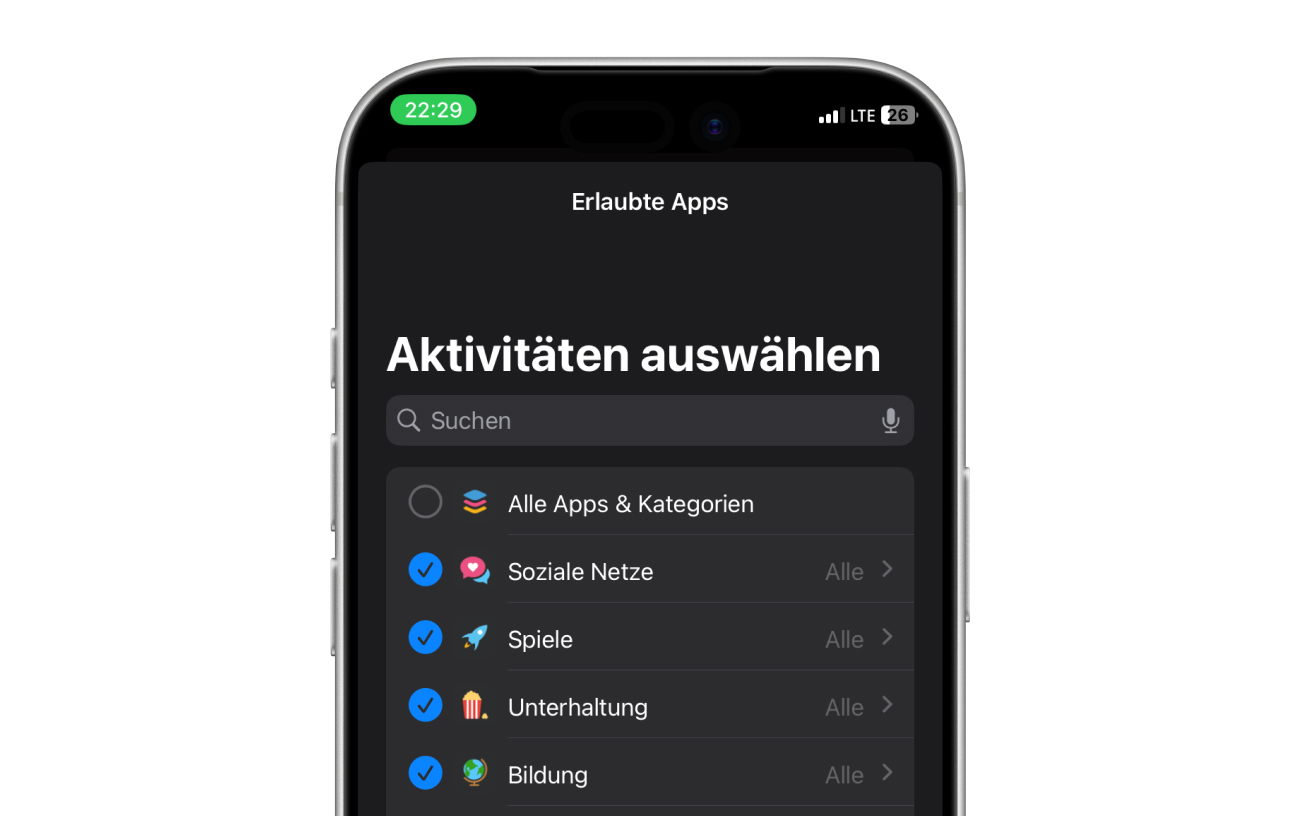
App selection in Allow mode on an iPhone
Next: Scan your Tag
Step 2One scan.
Your decision is made.

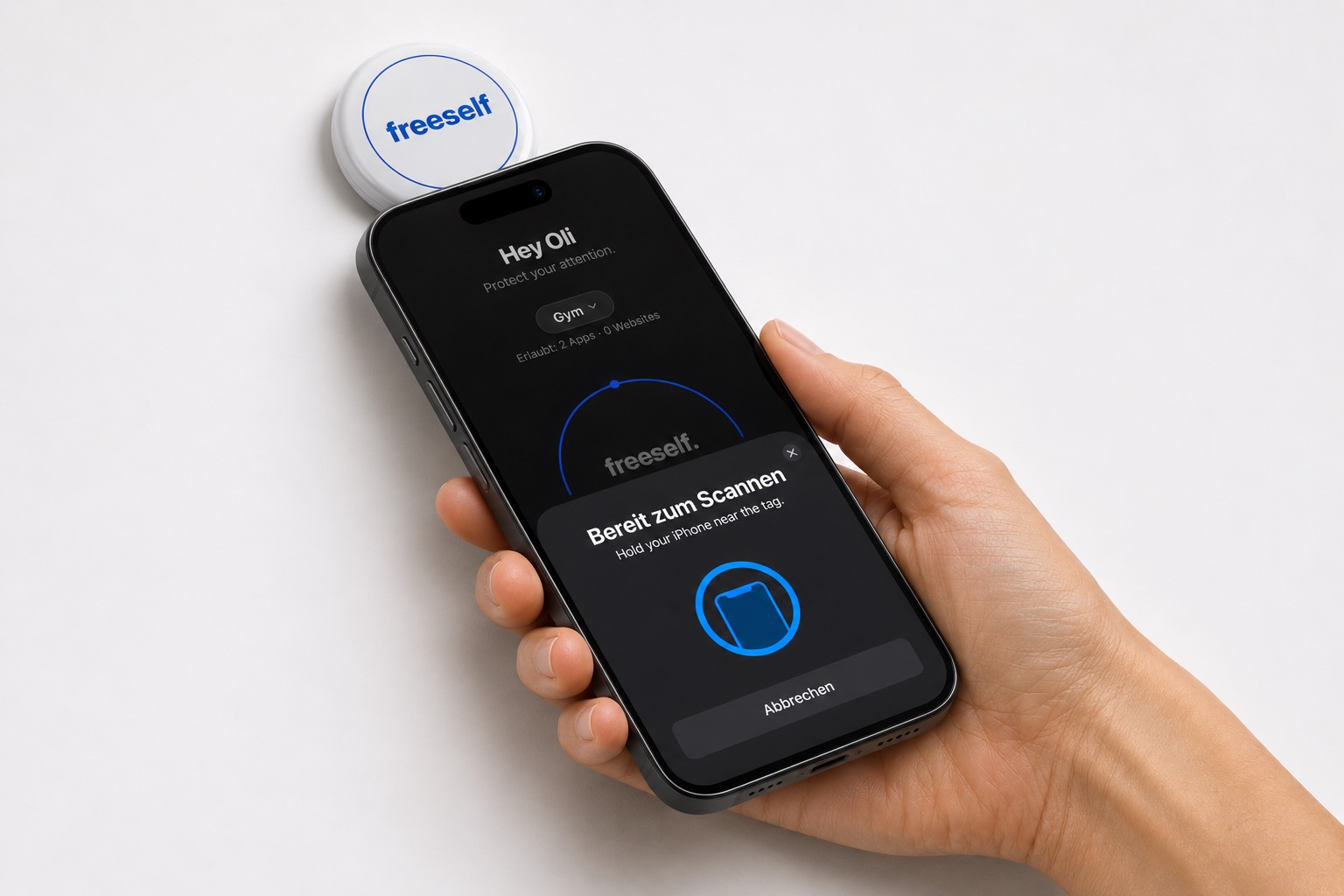
Choose your mode on Home and tap the circle to start scanning. Hold the top of your iPhone near your freeself Tag and wait for confirmation.

Your mode is now active. Open a selected app to check that it is blocked.

A hand holds a tilted iPhone with the NFC scan prompt open near a freeself Tag on a white surface
Next: Put your Tag aside
Step 3Phone down.
Your time is yours.

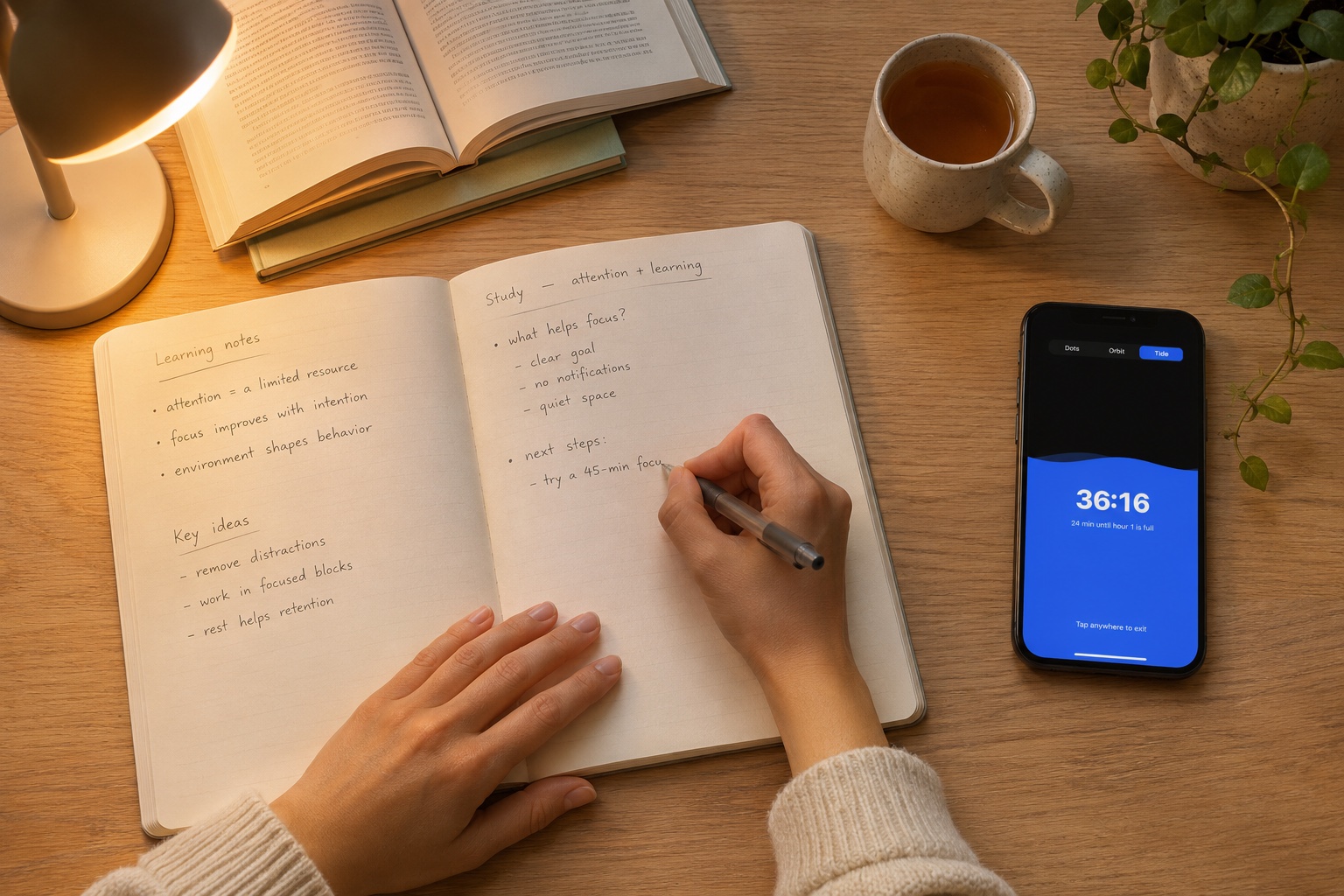
Leave the Tag out of reach. Make room for studying, work, or an evening where you are truly present.

Your focus time counts towards your daily goal and Streak. Breaks do not count as focus time.

A person writes at a warmly lit desk while an iPhone beside the notebook displays the blue Tide waves and focus time
Next: End your session
Step 4Done for now?
Scan once more.

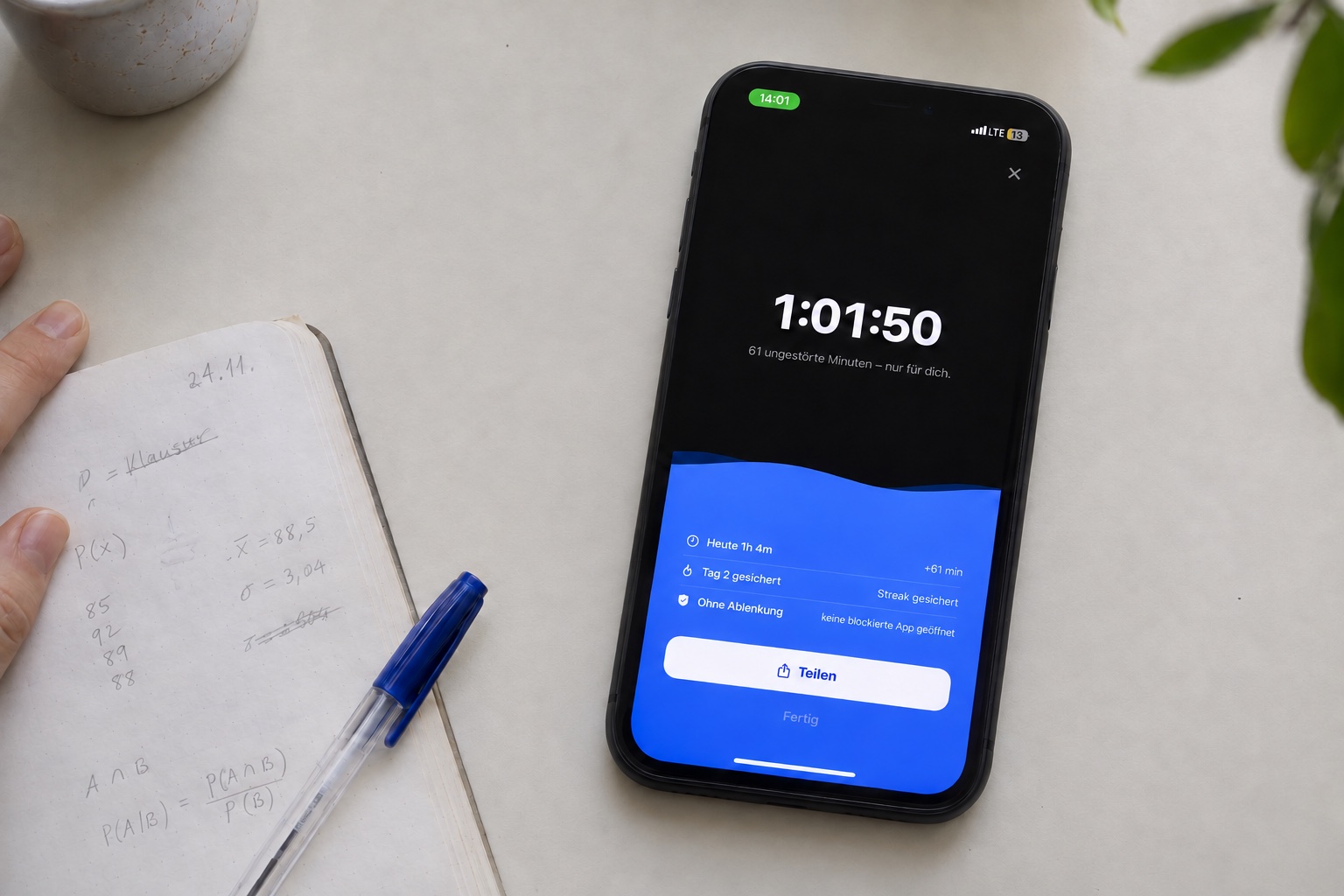
Open freeself and scan your Tag again to end your session. Your summary shows how long you stayed focused.

If a schedule or Place is also active, its restrictions may still apply.

An iPhone beside a notebook displays the summary of a completed focus session.
Next: Connect iPad and Mac

Connect iPad and Mac

Start sessions on your iPhone. Connect your iPad and Mac to follow the same session status.

  1. Install freeself on your iPad or Mac. Find the Mac download and system requirements on the downloads page.
  2. Sign in on all devices with the same account.
  3. Choose apps and websites separately on each following device. Your iPhone selection is not copied automatically.
  4. Start a session on your iPhone using your Tag, a schedule or a place. Connected devices follow after syncing.

Set up schedules

A schedule starts your mode automatically on the days and at the times you choose.

  1. Open Schedules on your iPhone and create a schedule.
  2. Choose the days, start and end times, and the mode to apply.
  3. Enable the schedule. Your mode will apply at the scheduled time.

Set up places

Link a mode to a location, such as your library or workplace.

  1. Open Places on your iPhone and add a location and radius.
  2. Assign a mode and enable the location rule.
  3. Allow the required location access, including background access, so your iPhone can respond to location changes.

Take a break

A break temporarily lifts restrictions while your session continues.

  1. Open the break option during an active session.
  2. Check the available duration and your remaining break budget.
  3. Restrictions return when the break ends. You do not need to keep the app open.

Daily goal and streak

Your daily goal sets how much focus time you aim to complete each day.

Set your daily focus goal and follow your progress in the Streak tab. The path shows your next milestones. Breaks do not count as focus time.

Troubleshooting

Start with the situation that matches your issue. You can find more answers on the support page.

Screen Time access is missing. What should I do?

freeself needs Screen Time access to block apps. Reopen the app and follow the permission prompt. Check access for freeself under Screen Time in iPhone Settings. If you are stuck, contact support.

My Tag is not recognised.

Start the scan in the app, hold the top of your iPhone close to the Tag and wait briefly. Try a slightly different angle and remove a thick or metallic case if necessary. Check for a scan or error message on screen.

Why is an app not blocked?

Check which mode is active and whether the app is included. In Allow mode, selected apps remain available. Also check Screen Time access and whether a break is active.

What happens without internet?

Sign-in and Cross-Device syncing need internet. An offline following device can receive session starts, breaks and endings only after reconnecting. Reconnect your devices and check their session status.

Why are apps still blocked after a session?

A schedule, place or another session may still be active. Check the active sources in the app. Ending one does not remove restrictions from the others.

Why am I not getting notifications?

Check that freeself is allowed to send notifications in iPhone Settings. An iOS Focus or notification summary can affect delivery. Blocking works independently of notifications.

How do I turn Places off?

Manage and disable location rules in Places on your iPhone. If restrictions remain, also check schedules and Tag sessions. iPad and Mac are following devices.

Contact support

Tell us which step you are stuck on. Your device and app version will help us answer.

Visit the support page →

Write to us

← Back to home